 GivHome
GivHome for Homebridge
GivEnergy in Apple Home
See your battery, solar and energy readings together in Apple Home. GivHome connects compatible GivEnergy systems through Homebridge, with local monitoring and supported battery controls.
GivHome communicates directly with your inverter over your home network using Modbus TCP. This connection does not require GivTCP, MQTT or the GivEnergy cloud. Octopus tariff features and solar forecasts use their relevant online services.
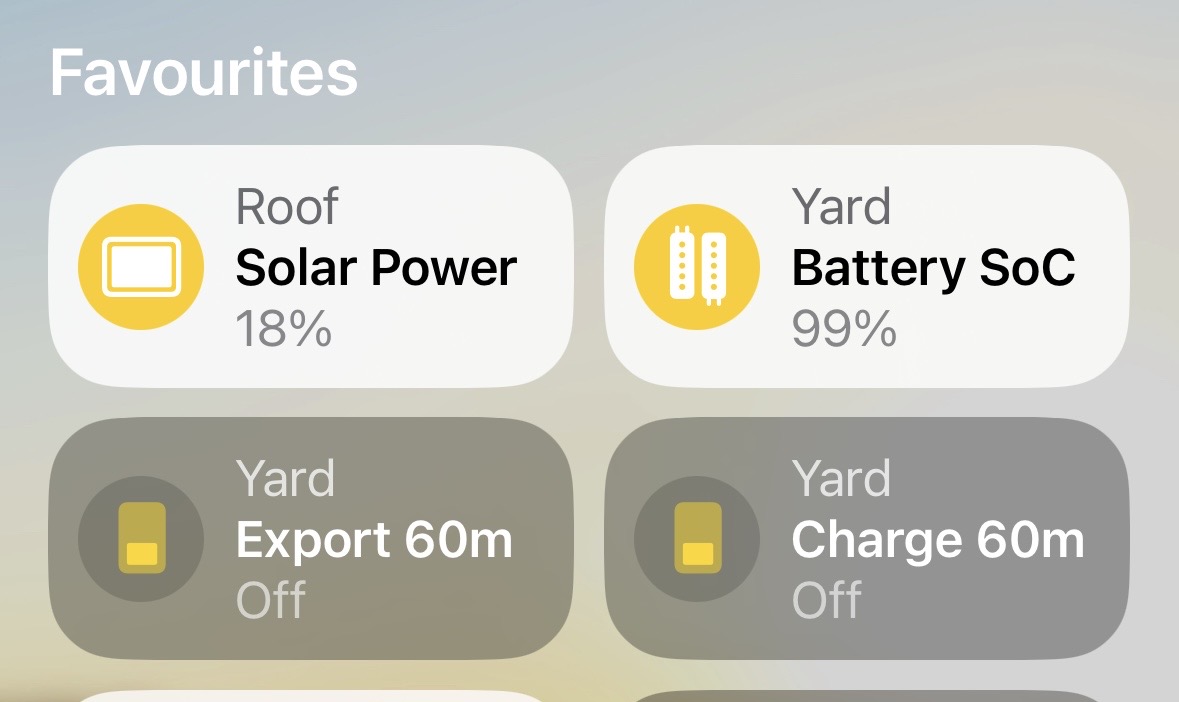
What you can see and do
Check battery level, solar generation, grid import and export. Choose your Night Target for Cheap Overnight, use supported timed charge and export controls, and stop an unwanted battery action with Emergency Stop. Optional Solar-Aware Cheap Overnight uses tomorrow’s forecast to choose between the overnight battery levels you set. Available controls depend on your inverter and firmware.
GivHome uses HomeKit accessory types to present energy readings and controls in Apple Home. Some tiles use a light or dimmer interface because Apple Home does not offer a dedicated type for every battery function. Night Target represents your saved overnight percentage, not whether the battery is charging. IOG protection and timed charges keep their own targets.
What you need
- A running Homebridge installation with access to your inverter's local network.
- A compatible GivEnergy system reachable over local Modbus TCP, normally port 8899.
- Your inverter IP address and the correct serial number.
- Apple Home on your iPhone or iPad. A HomePod or Apple TV home hub is recommended for remote access and automations.
Install and connect
- Save a Homebridge backup before changing an existing installation.
- Open Plugins in Homebridge, search for GivHome and click Install. The package name is homebridge-giv-iog-local.
- Open the plugin settings and enter the inverter IP address and serial number.
- Enable the GivHome Child Bridge and follow the restart prompt. Use its pairing code to add it to Apple Home.
- Confirm the readings are sensible before enabling battery controls. Choose optional tariff, history and forecast features in settings.
Choose the right serial number
Use the inverter or AIO serial for a single system. Where a GivGateway presents multiple AIO batteries as one combined system, use the Gateway serial. Support varies by model and firmware; not every Gateway combination has been tested.
GivHome checks that the responding device matches your configured serial. Check the plugin documentation for model-specific controls and limitations.
Keep everyday charging simple
Cheap Overnight works towards your Night Target during your configured low-rate period. Optional Battery Care can plan a gentler rate when there is enough time. Solar-Aware Cheap Overnight can leave more room for a brighter day, using your chosen forecast boundaries and battery levels. Your Night Target remains the maximum and fallback. For EV charging on Intelligent Octopus Go, see how GivHome helps keep stored energy for the house.
A way back to normal
Emergency Stop is available by default on supported systems with battery control enabled. Tap it in Apple Home to stop an unwanted forced charge or export. GivHome returns the battery to normal Eco operation and checks the result, keeping track of unfinished recovery if communication is interrupted. Read how Emergency Stop works.
Learning stays at home
Local Learning uses existing readings and forecasts to begin building a picture of your home’s energy use. It is enabled by default, keeps its observations on your Homebridge device within limited storage and can be disabled in Plugin Config. It does not yet calculate or change charging targets.
Some CH/AIO systems have a separate scheduled AC charging limit. GivHome reports that limit but does not change it automatically, so a selected target may not override it. Read the release documentation before relying on a new charging setup.