How do I use Emergency Stop?
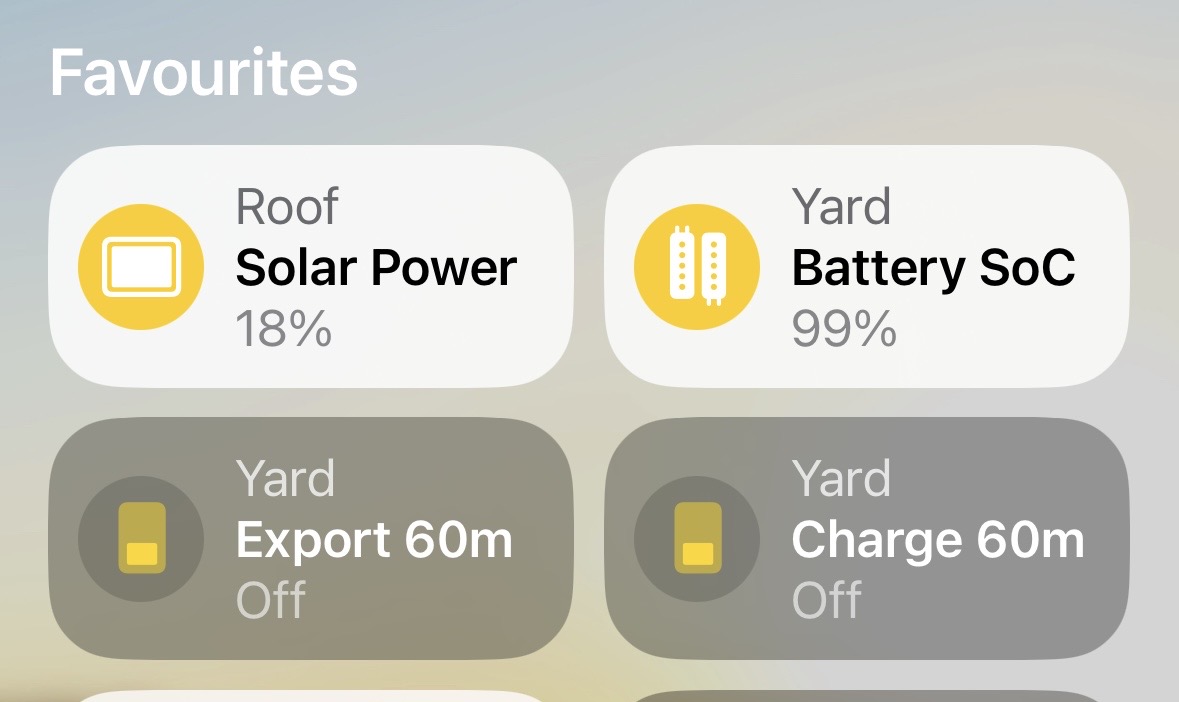
Tap Emergency Stop in Apple Home to stop an unwanted forced battery charge or export. GivHome checks the current action, returns the battery to normal Eco operation and verifies the result. The tile returns Off when the stop completes. If GivHome cannot confirm the result, Apple Home shows a fault and GivHome keeps track of unfinished recovery, including after restart. The tile is available by default on supported systems with battery control enabled; you can hide it in Plugin Config. It controls the home battery. EV charging stays under Octopus’s control.
How do I use Solar-Aware Cheap Overnight?
Set up Cheap Overnight and Predicted Solar in Plugin Config, then enable Solar-Aware Cheap Overnight. Choose battery levels for low, medium and high solar days, and set the forecast boundaries between them. Turn its Apple Home switch On to use those choices, or Off to use your normal Night Target. A missing or unsuitable forecast also uses your normal target. Your Night Target remains the maximum; IOG protection keeps its own target.
Does Local Learning change my charging?
No. It records existing readings and forecasts to begin learning about your home. Observations stay on the Homebridge device, storage is limited and no learning history is sent to the developer. Learning is enabled by default and can be switched off in Plugin Config. Automatic calculation of charging targets is a future development.
Can I use GivEnergy with Apple Home or HomeKit?
Yes. GivHome runs on Homebridge and connects compatible GivEnergy systems to Apple Home using HomeKit. See battery and solar readings and use supported controls from the Home app. Read the GivEnergy and Apple Home setup guide.
How can I keep my house battery from draining into my EV?
With Intelligent Octopus Go configured, GivHome follows Octopus smart EV charging slots and can protect your house battery during those periods. Protection depends on your inverter's supported controls and the selected settings; it is not a promise for every EV charging session. Read about smart EV charging and battery protection.
What is Battery Care Charging?
Battery Care can plan a gentler charge rate during your main cheap overnight period when there is enough time to reach your target. It is optional and does not apply to extra smart EV slots or manual charging.
Looking for GivHome for iPhone or iPad?
Explore GivHome for iPhone and iPad. This page covers GivHome for Homebridge, which runs on your Homebridge host and brings compatible GivEnergy systems into Apple Home.
What is included?
GivHome 4.1 brings local monitoring and supported battery controls, Emergency Stop, Night Target, Solar-Aware Cheap Overnight, Intelligent Octopus Go protection, export planning, Eve history and Predicted Solar into Apple Home. Local Learning prepares for future features on your Homebridge device. Choose what suits your home in Plugin Config; available controls depend on your inverter.
How do I install GivHome?
In your Homebridge dashboard, open Plugins, search for GivHome and click Install. Homebridge installs the complete plugin. Open its settings, enter your inverter details, then enable the Child Bridge and pair it with Apple Home. Existing users can update from the GivHome plugin card.
Do I need GivTCP or MQTT?
No. GivHome connects directly to your inverter over your home network for monitoring and supported controls. Those functions do not need GivTCP, MQTT or the GivEnergy cloud.
What changes if I have an older GivHome setup?
Older setups used GivTCP and MQTT. The current plugin connects directly to the inverter instead, so you will need its local IP address and serial number. Back up Homebridge and read the migration guide linked from the plugin documentation before upgrading.
Which GivEnergy systems are compatible?
Your GivEnergy system needs to be reachable over local Modbus TCP. Monitoring and control support vary by inverter model and firmware. GivHome checks the configured serial number and supported capabilities before allowing controls. Check the plugin documentation for your system; if you are unsure, get in touch with your model and firmware details.
Does GivHome support multiple AIO batteries?
If your GivGateway presents the batteries as one combined system, use its serial number rather than an individual AIO serial. Support depends on the Gateway and firmware; not every combination has been tested. Confirm the combined readings and available controls before enabling automation.
What should I enter for Serial Number?
For a single AIO or inverter, use the serial shown for that device in the GivEnergy app. For a Gateway-presented multi-AIO system, use the GivGateway serial. The serial is also a safety check: GivHome rejects a Modbus responder that does not match the configured serial.
What is Night Target?
Night Target is the Apple Home percentage slider for Cheap Overnight only. It replaces the name Charge Target and keeps your saved overnight percentage. It does not start charging or change IOG protection and timed-charge targets. With Solar-Aware Cheap Overnight on, it also sets the maximum overnight level.
Why does Night Target stay On?
Night Target represents a saved choice, rather than whether the battery is charging. Apple Home uses a dimmer-style tile for the percentage slider, so it stays On. To turn Cheap Overnight off, use its own switch. To stop a current battery action, use Emergency Stop.
Why might a target not reach 100% on CH/AIO?
Some CH/AIO systems have a separate limit on scheduled AC charging. GivHome reads and reports this limit but leaves it unchanged. If that limit is 80%, requesting 100% may still leave the battery at 80%. The plugin documentation calls this setting HR242.
How does GivHome handle IOG and Cheap Overnight overlap?
Your configured Cheap Overnight period takes priority while it is running. When it ends, GivHome can hand over to IOG protection if a suitable smart charging window is still active.
What is Evening Excess Export?
Evening Excess Export is optional local evening export management. It can sell spare battery energy later in the evening while keeping a reserve for the home and the next cheap overnight window. It is not Agile price chasing.
What is Octopus Flux Export?
Flux Export plans short runs within your eligible peak period, keeping your chosen battery reserve and a margin for the home. Enable it in Plugin Config and choose whether to show the Flux Out tile. The tile lets you turn Flux export off or back on in Apple Home. Hiding it leaves the enabled function following its configured rules. After a Homebridge restart, Flux follows the enabled configuration again.
What is Agile Outgoing support?
Agile Outgoing uses half-hour export prices to plan around spare energy, your reserve and permitted export times. Start in preview mode, which does not control the inverter. Live export is an optional setting that requires acknowledgement; review the plans before enabling it.
What is Predicted Solar?
Predicted Solar estimates tomorrow’s generation from Open-Meteo weather data and each array’s capacity, direction, tilt and shading. Solar 2mrw shows the forecast as a percentage, with its scale calculated from your combined panel capacity. GivHome checks for a fresh forecast every 90 minutes. The forecast itself does not control charging; optional Solar-Aware Cheap Overnight can use it to choose between your overnight levels.
How much space do Eve history records use?
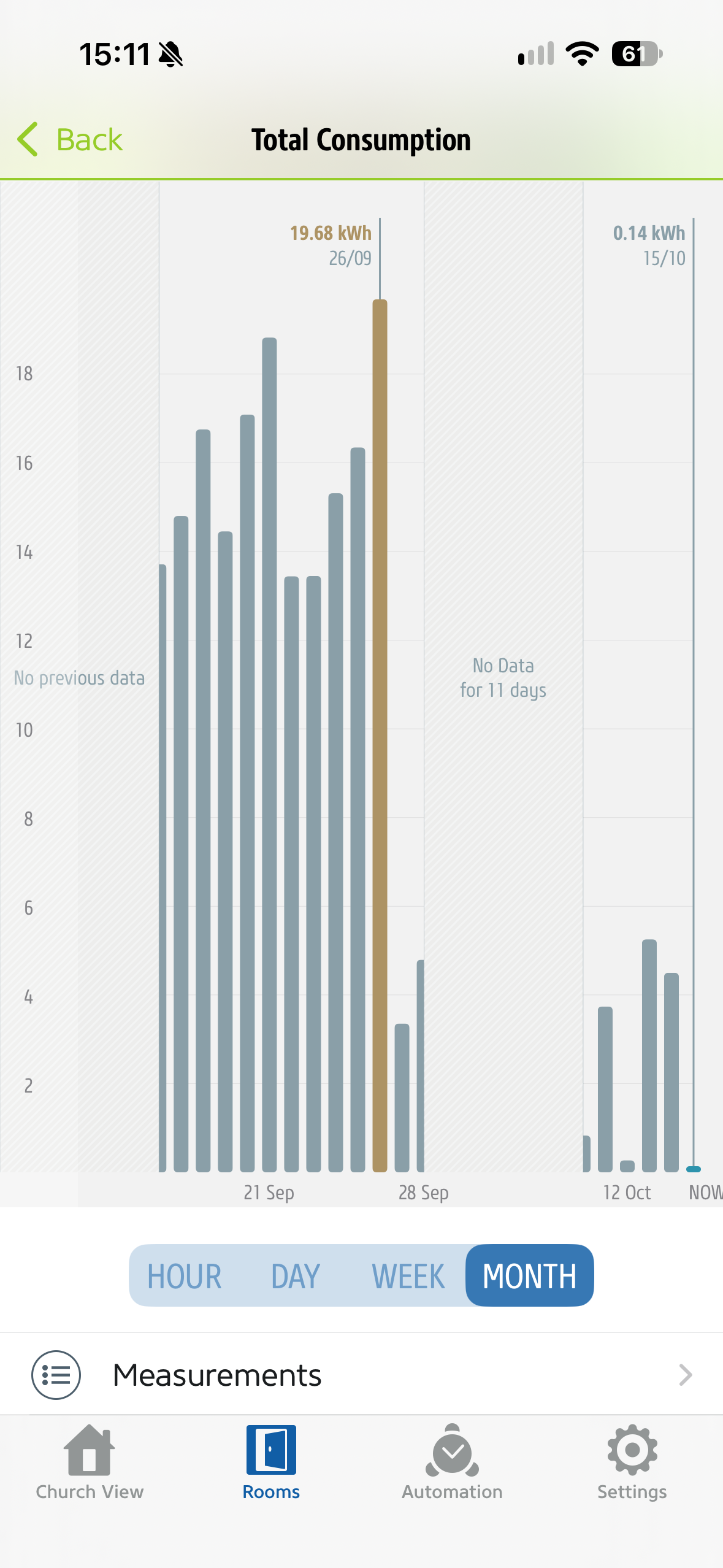
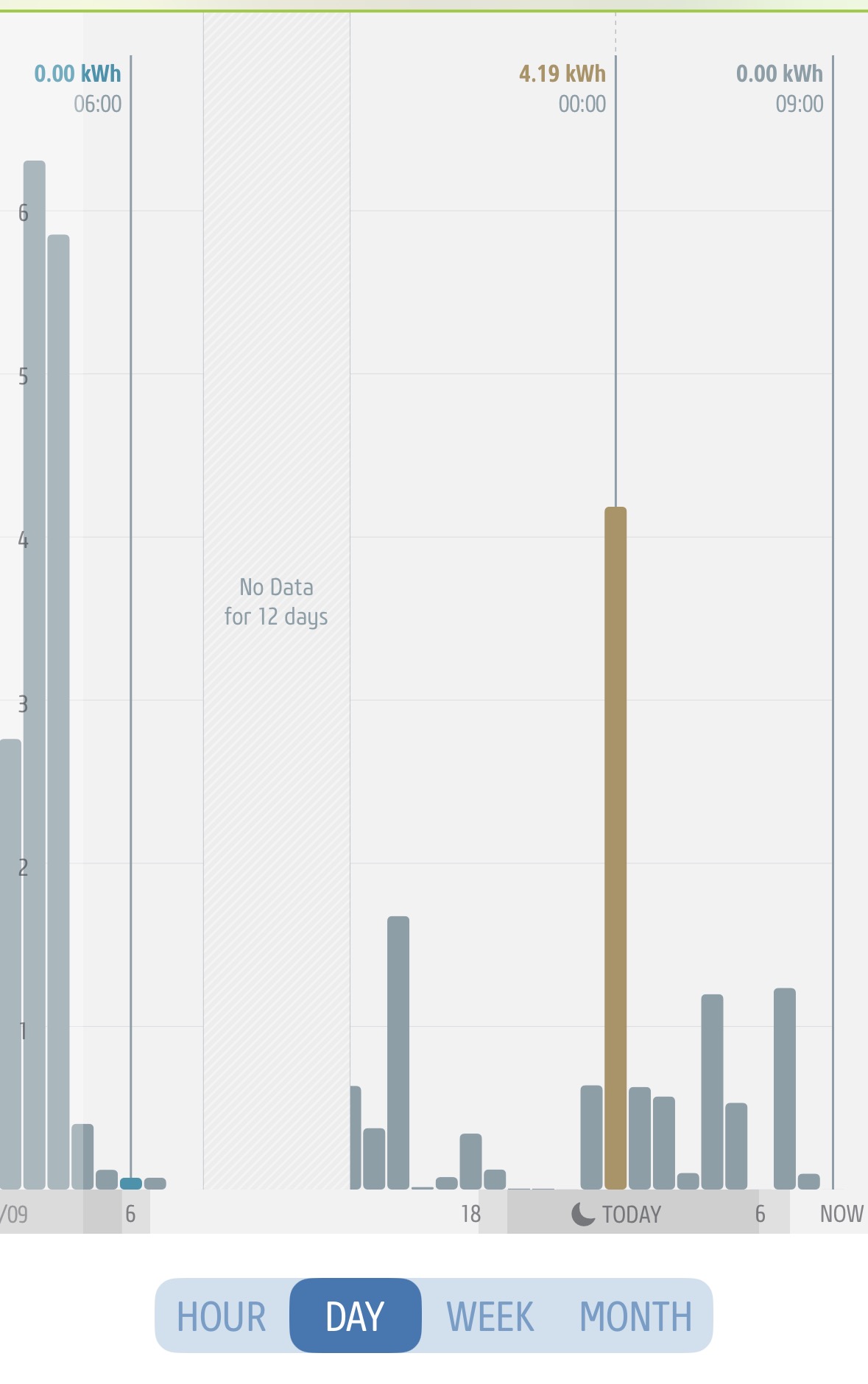
Very little. The existing estimate remains less than 40 MB for five years of solar, import and export history. Totals are stored locally and survive restarts.
Why enable Child Bridge mode?
Child Bridge mode usually gives the cleanest Apple Home experience. It keeps GivHome separate inside Homebridge, makes pairing easier, and helps preserve stable HomeKit accessories during plugin updates.
Why do some GivHome tiles appear as lights?
Apple Home does not offer native tile types for every battery concept. GivHome uses reliable HomeKit accessory types so battery level, solar generation, Night Target, smart windows, grid import/export and manual controls remain visible, automatable and Siri-friendly.
Do I need Homebridge running first?
Yes. Install GivHome through your existing Homebridge dashboard. If you are new to Homebridge, follow the official Homebridge setup guide for your chosen host, then install GivHome from the Plugins page.
What should I back up before upgrading?
Save a Homebridge backup and keep a copy of your Eve history and any useful diagnostics. Check how to return to your previous plugin version before updating a system that controls your battery.
 GivHome